Kakobuy Blurry QC Photos on Mobile
Kakobuy Blurry QC Photos on Mobile
Blurry QC photos on your phone don't necessarily mean the warehouse's original shots were out of focus. Chat apps or web thumbnails may compress images, and mobile browsers might show low-res previews to load faster. But if you've downloaded or opened the original and still can't read the specs that matter most for your order, don't just confirm the item on a hunch.
This guide tackles one specific problem: after your Kakobuy items are stored, how to use your phone to sort existing QC photos into "confirmed," "questionable," and "needs a reshoot," and put together the smallest evidence list that will actually support a reshoot request. It does not cover judging material composition, internal structure, electronic functions, smell, or the state of items inside sealed packaging, because ordinary appearance photos simply can't prove those things.
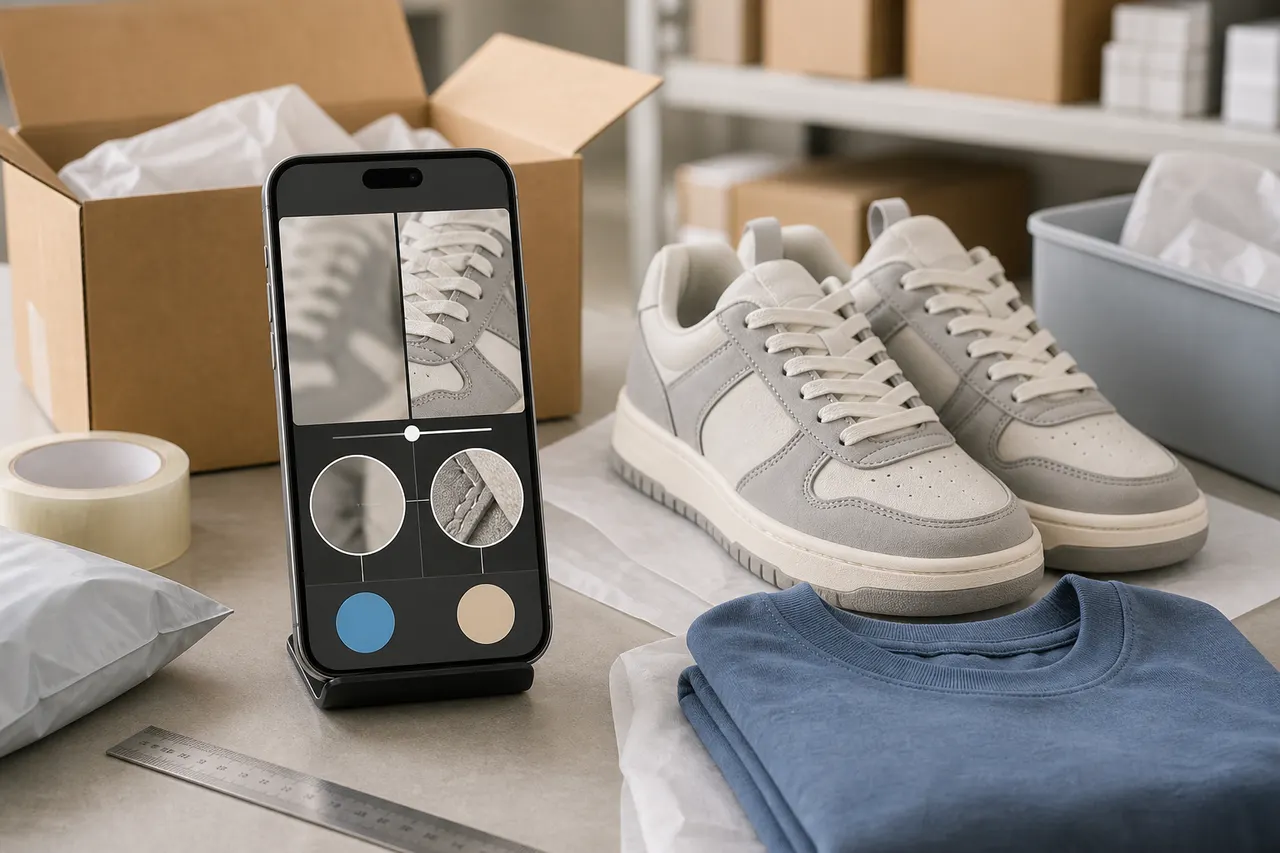
First, Figure Out If the Blur Is from the Image or Your Phone Display
Don't keep zooming into the same thumbnail over and over. That only makes compression blocks bigger; it doesn't add any detail.
Go through these steps in order:
Wait for the images on the page to finish loading so you don't mistake a low-res placeholder for the actual photo.
Reopen the order page on stable Wi-Fi or mobile data.
If the page has options like view full size, open original, or download image, use them first. The entry points might differ between versions, so go by what you see at the moment.
After downloading, view the file in your phone's gallery and make sure it hasn't been forwarded or compressed again by a chat app.
Look at the overall image around 100% zoom, then gradually zoom into key areas. Don't jump to maximum magnification right away.
If convenient, open the same file on another device or a desktop browser. If it's just as blurry there, the problem is more likely with the image itself than your phone screen.
When judging, pay attention to where the blur is. If the whole photo has no sharp edges, it could be out of focus, camera shake, or low resolution. If only areas near highlights are unclear, it might be glare. If text edges look blocky or jagged, it's probably compression. If only one spot is blocked by a hand, packaging, or label, that's an angle problem.
Don't use a screenshot as your final reference. Screenshots only capture the pixels your phone displayed at that moment, and they usually can't recover the original detail.📱
What Mobile Preview Can Confirm in QC
Even on a phone, existing QC photos can usually help confirm some appearance details. Kakobuy's inspection scope mainly covers visible info like style, quantity, color, size, and model. For sealed packaging, and for some non-clothing, bags, and shoes with sealing tags or strips, inspection typically doesn't open the package. They can only check for obvious damage to the outer packaging and verify against visible information on it.
Mobile preview is good for a first check of:
Whether the item quantity matches your order;
Whether the main color and style outline are obviously wrong;
Whether left/right shoes, sets, or key accessories are all present;
Whether the outer packaging has obvious tears, crushing, or large stains;
Whether size tags, model tags, or color tags were captured;
Whether there are large, clearly located stains, tears, de-gluing, or deformations on the item's surface;
Whether a readable measuring tool was placed in the photo.
Mobile preview usually cannot reliably confirm:
Fabric feel, thickness, stretch, or smell;
Actual material of leather, metal, or gemstones;
Electronic functions like screen, charging, connection, or sound;
How shoes or clothes actually fit when worn;
Accessories and internal structure hidden by packaging;
Authenticity or long-term durability, which photos alone can't prove.
If your order decision depends on these, first check what additional inspection services the platform can offer. Don't mistake the limits of a regular QC photo for the item being fine.
Open the Original and Zoom In Step by Step by Area
When viewing the original, it helps to follow a set path: overall — labels — high-risk areas — anomalies. This keeps you from staring at one suspicious pixel too long and missing a spec error that actually affects returns or shipping.
First pass, overall: check quantity, front/back, color, outline, and packaging condition. Don't try to read every line of text yet; just look for obvious wrong style, missing pieces, or severe deformation.
Second pass, labels: check size tags, model numbers, color codes, packaging stickers, and quantity info one by one. First locate the label, then zoom to a level where the text is just readable. If the label occupies too few pixels in the original, no amount of zoom will create new information.
Third pass, high-risk areas: for clothes, check collar, cuffs, prints, zippers, and seams. For shoes, check toe, heel, sole, left/right shoe labels, and glued edges. For bags, check corners, hardware, strap attachment points, zippers, and interior/exterior colors. For fragile items, check edges and pressure points on the packaging.
Fourth pass, anomalies: record which photo, which direction, and roughly where in the frame the anomaly is. For example, "Photo 3, right side of the toe near the highlight edge" is much more useful for review than "something looks off here."🔍
The goal of zooming isn't maximum magnification; it's getting enough information to support a decision. If zooming only produces bigger pixel blocks, stop and mark that area as needing more evidence.
Use Your Order Specs to Decide Which Details Must Be Clear
QC priorities should come from your order specs, not from whatever is most eye-catching in the photo. Before looking at images, list the order attributes that will affect whether you keep, return, or ship.
Jot down a short checklist:
Ordered quantity;
Style or version;
Color;
Labeled size;
Key measurements provided by the seller;
Model or compatibility specs;
Main components that should be in a set;
Obvious appearance issues you won't accept.
Then mark each item's status:
Confirmed: there's direct, clear visible evidence in the original photo;
Questionable: the area is visible but affected by compression, glare, or angle;
Not covered: existing photos don't show that area;
Not confirmable by photo: needs functional testing, opening, touching, or other proof.
For example, if the order says size 42 but the photo only shows the shoe's shape without a clear label, you can only confirm the style outline, not the size. If the length of a garment is critical and the ruler's start, end, or markings are unclear in the photo, don't estimate from a fuzzy outline.
Tell Apart Compression Artifacts, Glare, and Real Flaws
These three look very similar on a phone screen, but they need different handling.
Compression artifacts often show up as blocky squares around text, stair-stepped diagonal lines, and smeared fine textures, with similar patterns across multiple high-detail areas. They mean the file doesn't have enough information, but they don't prove the item is flawed.
Glare usually follows the light source and curves. Edges are brighter, and it can appear on painted surfaces, plastic film, metal parts, or smooth leather. Compare the same spot in photos from different angles: if the bright patch moves with the angle, it's more likely glare; if a dark dot, crack, or chip stays in the same physical spot, it's worth investigating further.
Real flaws need consistent evidence across photos. For example, if the same stain is next to the same seam in both the front and side-angle shots, that's more credible than an isolated dark spot in one photo. Conversely, if an anomaly stays in the same pixel location even when the item's angle changes, it could be a lens, background, or image-processing artifact.
Don't jump to "scratch," "crack," or "stain" from one blurry photo. A better note would be: "There's a dark linear area at this spot that I can't rule out; need a close-up without glare to confirm." That separates observation from conclusion.🧭
Record What You Can't Confirm and What Angle You Need
The more specific your reshoot request, the better your chance of getting useful evidence. Don't just write "photos too blurry, please take clear ones." Instead, state the object, location, angle, and what you're trying to determine.
You can use this format:
Existing photo: Photo 2, front view
Unable to confirm: whether the dark area at the bottom-right seam is shadow or stain
Needed photo: close-up, in focus, front view without strong glare
Purpose: confirm if there's a stain, loose thread, or damage
If you need a size check, say exactly which label to photograph and that the text must be fully readable. If you need measurements, specify the start and end points, units, and how the item should be laid flat. Just saying "measure it" often gets you a photo you can't use.
Try to keep each unresolved point to one clear task. Asking for a dozen angles in one request increases the chance something gets missed and makes it harder to prioritize what really matters.
Minimum Evidence List Before Requesting a Reshoot
Before submitting a reshoot or extra inspection request, prepare:
The order or item in question, but mask order numbers, names, addresses, phone numbers, and payment info if sharing screenshots publicly;
The sequence numbers of existing QC photos;
The exact location of the blurry or suspicious area;
The order specs you need to verify;
Why the current photos can't support a decision;
The distance, direction, and lighting you want for the reshoot;
The specific decision you'll make after, like confirm shipping, contact support, or request return/exchange.
Before submitting, double-check: Can the original really not resolve this? Is the request within the scope of visible appearance inspection? Does it require opening the package or functional testing? For sealed items or those restricted by inspection rules, the warehouse may only be able to check packaging and external labels; a reshoot can't bypass those limits.
For return/exchange decisions, don't ignore the processing deadlines and item restrictions shown on the order page while waiting for reshoots. Policies, fees, available services, and page entry points can change, so on the day you act, go by the order page and customer service replies. The workflow and platform info in this guide were checked on September 4, 2026.
Final Step: Sort into Confirmed and Pending Evidence
When you're done checking, don't leave just a vague "looks okay" that can't be reviewed. Organize results into three groups:
Confirmed: photos clearly prove quantity, style, color, labels, or visible appearance match the order.
Pending evidence: the area is affected by compression, blur, glare, obstruction, or angle, and current evidence isn't enough.
Beyond photo capability: material, function, smell, internal structure, or authenticity that regular QC photos can't reliably confirm.
Only group 1 can be used as your current QC conclusion. Group 2 should get targeted reshoot requests following the minimum evidence list. Group 3 means accepting the limits of photo inspection and checking if there's an appropriate extra service or other reliable proof.
This method won't magically improve product quality, but it reduces two common losses: first, mistaking display compression for product flaws, which causes unnecessary reshoots or handling costs; second, rushing to ship when key labels and high-risk areas are still unreadable, losing the chance to fix issues more easily at the warehouse stage.✅
This approach is most suitable for buyers checking size, style, quantity, and obvious appearance issues while items are in the warehouse. If the item is expensive, a spec error would make it unusable, or existing photos clearly miss key areas, reshoots are usually worth it. But if the issue is about feel, function, authenticity, or the inside of sealed packaging, don't keep relying on endless zooming and reshoots. Switch to a verification method that matches the problem, and be clear about remaining risks before you decide to ship.
Editorial note: This article was generated by Panda-Buy Editorial Desk's automated content process and independently checked for consistency against provided platform materials. No claim is made that a real person purchased, received, touched, or tested the items mentioned.
Agent Platform Shopping FAQ
1. What is the reason kakobuy doesn't rely on Google Sheets?
For product catalogs that are compact, Google Sheets can work, but as soon as your item count climbs, kakobuy notices that sheets become sluggish and unresponsive. The problem gets worse on phones and tablets, where the layout is hard to read and finding a particular item is frustrating. kakobuy's own online table for the same product list loads more quickly and gives you a clearer viewing experience.
Browse our latest products and find your next favorite item.