kakobuy Mobile Spreadsheet Loading Guide
kakobuy Mobile Spreadsheet Loading Guide
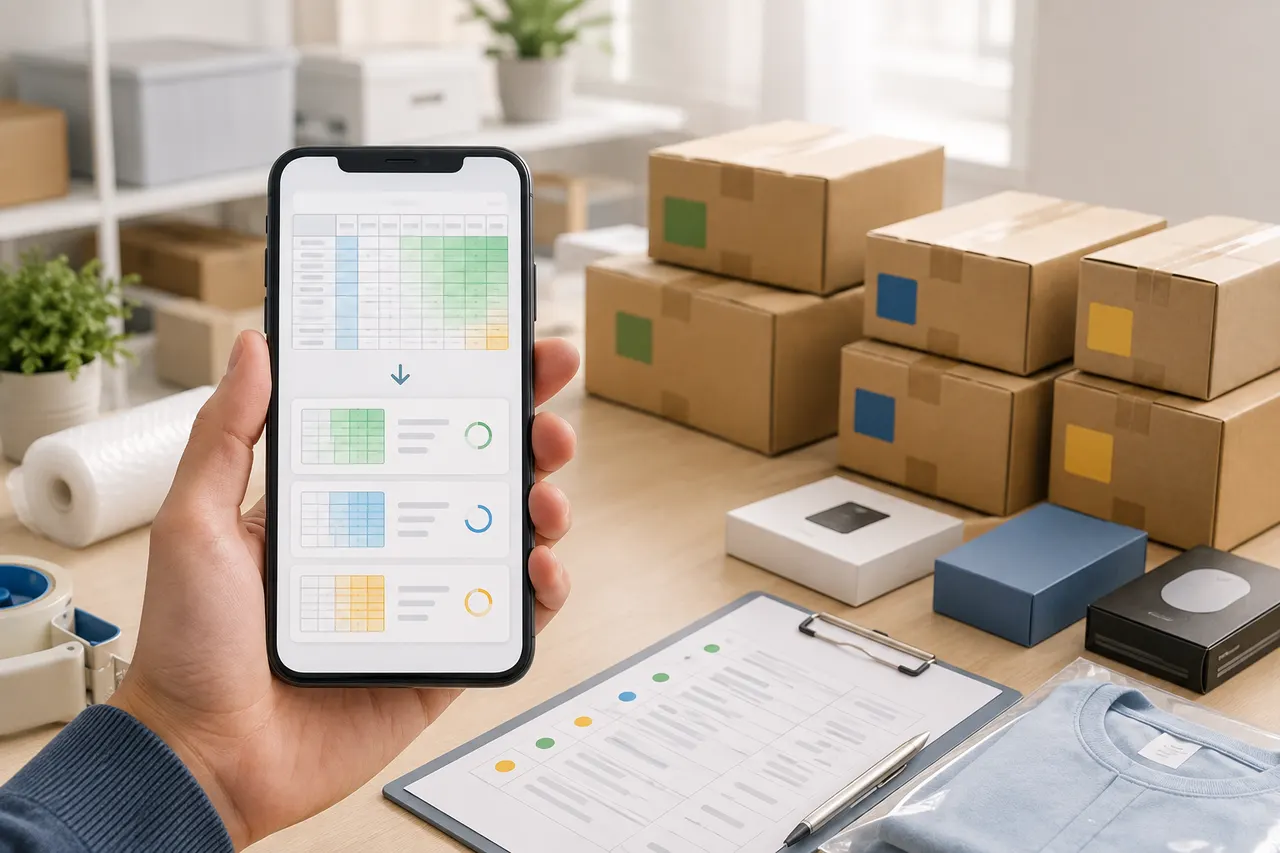
Large spreadsheets containing many product rows, thumbnails, and external links can leave your phone stuck on a blank page for a long time, jump back to the top after scrolling, or even reload the entire page. This guide addresses a specific problem: how to first find products worth verifying without repeatedly loading the whole spreadsheet, then open product pages to continue checking.
After reading, you should be able to break an easily interruptible browsing process into four steps: "locate section, light preview, save progress, verify one by one." This guide applies to users browsing product indexes or spreadsheets via kakobuyall.com. It does not apply to checking orders, warehouse QC, international shipping, or after-sales status. The spreadsheet can only help discover candidate products; price, stock, size, material, seller information, and link status must still be verified on the opened product page.
Information verification date: September 3, 2026. Phone model, browser version, network environment, and spreadsheet maintenance status will affect actual performance, so this article does not promise fixed loading times, nor does it treat dynamic product information in the spreadsheet as valid long-term.
First determine if the page, spreadsheet, or image loading is stuck
Don't refresh repeatedly when you see a white screen. Wait about 10 to 20 seconds and observe which state the page is in:
Page title, navigation, and text have not appeared: more likely a page connection, browser script, or cache issue.
Page framework has appeared, but the spreadsheet area is empty: more likely the large spreadsheet itself has not finished loading.
Product names are displayed, but images are still gray boxes or blank: spreadsheet data has loaded, the bottleneck is mainly images.
After clicking a product, only the external page won't open: the problem may be with the target link or the product source page, not the spreadsheet.
You can scroll, but the page suddenly jumps back to the top: likely a page redraw triggered by memory pressure.
For the first check, take a screenshot to record the current category, row number, or visible product name. This way, even if the page reloads, you won't have to rely entirely on the browser restoring your position. 🔎
If the same page fails to display on both Wi-Fi and mobile data, test once more with another browser. If only one browser fails, prioritize handling that browser's cache, content blocking, or memory usage; if multiple browsers fail, then consider the page or spreadsheet source temporarily unavailable.
What tasks can kakobuy Spreadsheet accomplish on mobile
Mobile is suitable for quick screening of candidate products, not for completing all purchase decisions at once. More reliable tasks include:
Search for candidate products by category, keyword, or spreadsheet section.
View product names, thumbnails, and basic fields clearly displayed in the spreadsheet.
Save the name, screenshot, or section of a few candidates.
Open target product pages one by one to check if links are still valid.
Pass verified candidates to the subsequent ordering process.
You should not confirm price, stock, size, or seller promises based solely on the spreadsheet. The spreadsheet may have update delays, and thumbnails are not enough to prove material, dimensions, and actual condition. For products you intend to purchase, at least re-verify product name, specification options, current price, stock notice, and seller page status; after entering the warehouse, check visible information such as style, quantity, color, size, or model based on actual QC photos.
For sealed products, visual inspection is not the same as opening and testing. Spreadsheet, product page, and warehouse QC address three different problems: "discovering products," "confirming sales information," and "checking received appearance," and cannot replace each other.
Close unnecessary pages and keep current filter conditions
Large spreadsheets may consume a lot of memory. Before starting to filter, close pages playing videos, maps, social media feeds, and other large spreadsheet pages, keeping only the current spreadsheet and one tab for opening product details.
Before clearing pages, save the following information:
Current category or sheet name.
The row number, section title, or first visible product name you are viewing.
Keywords and filter conditions already entered.
The most recent confirmed valid candidate product.
If the page URL changes with filter conditions, bookmark the current address; if not, record conditions with screenshots or notes. Do not open the same large spreadsheet in multiple tabs simultaneously, as each page may re-request data and images.
Browser incognito mode is not necessarily faster because it may not use existing cache. Only when normal mode keeps showing a white screen, cache is suspected corrupted, or extensions interfere, is it worth doing a comparison test in incognito mode. 📱
Split browsing scope of large spreadsheets by category or section
The key to mobile browsing is not to "load the whole spreadsheet" but to narrow the task to a recoverable small section. Prioritize using existing categories, sheet tabs, filters, or table of contents; if none, divide by row numbers or visible headings yourself.
You can adopt the following pace:
Process only one category at a time, avoid frequent switching between categories.
Divide continuous content into small segments, for example, browse about 20 to 40 rows each time; adjust based on image density and phone performance.
Keep at most 3 to 5 candidate products per segment before going to detail pages for verification.
After completing a segment, record "position seen so far" and "start of next segment."
When returning to the spreadsheet, restore category and section first, then continue downward.
If your target is clear, search for specific category, style word, or model fragment first to reduce irrelevant rows entering your view. When search fails, try spaces, hyphens, capitalization, or shorter category words, but do not assume two entries are the same product just because names are similar.
The ending condition for segmented browsing should also be clear: stop scrolling once you have enough candidates, and move to product page verification. Loading more images only adds to the phone's burden and does not automatically improve selection quality.
Use light preview to judge which products are worth opening further
The purpose of light preview is to judge whether a row is worth the next page load, not to complete a purchase decision. First look at already displayed text fields, then load images as needed.
Prioritize keeping candidates that meet these conditions:
Product name identifies a specific category, not just a vague number.
Thumbnail does not clearly conflict with the name.
Target link opens normally and leads to a page with a clear product name and visible sales information.
Specifications have a checkable correspondence with your needs.
Page has no obvious invalid, delisted, redirect abnormal, or empty content state.
Entries showing only images without a clear product name are not suitable as final judgment basis. Identical thumbnails do not prove the seller, specifications, material, or stock are the same. When you encounter a candidate worth keeping, record "spreadsheet position + product name + items to verify," for example, "section 4, black backpack, need to check dimensions and material." ✅
After entering the product page, verify according to your purchase conditions, not be influenced by spreadsheet sorting. If current price, specifications, or stock cannot be confirmed, mark the candidate as "unresolved," and do not fill in with old screenshots or neighboring product information.
Image and link loading order on slower networks
On slower networks, proceed in the order of "text locate, single image confirm, single link verify":
Wait first for title, category, and product names to appear; do not scroll continuously in a hurry.
Move only to the current small section, letting thumbnails near the screen load as needed.
After selecting one candidate, open details in a separate tab.
Wait until that detail page completes necessary information verification before returning to the spreadsheet to handle the next candidate.
If images keep failing, save the candidate by name and position first, and re-check later when the network stabilizes.
Do not click multiple product links consecutively. The phone may load multiple detail pages in the background, causing the spreadsheet tab to be reclaimed by the system. Turning off browser autoplay, data preloading, or unnecessary high-quality modes usually also reduces bandwidth competition, but specific setting names depend on the browser.
Before switching between Wi-Fi and mobile data, save the section position. If the page has already loaded text but images are very slow, repeated refreshing discards acquired data; it's better to stay and wait or continue processing text fields. 🌐
Troubleshooting checklist for failure to load, white screen, and jumping back to top
Check in order from low cost to high cost:
Confirm other normal web pages can open, ruling out device completely offline.
Wait for the current page to finish one load; do not refresh continuously or click repeatedly.
Record category, keywords, section, and candidate product names.
Close videos, social media, and other large pages to free memory.
Reopen the current spreadsheet and directly restore to the recorded section.
Test once after pausing content blocking or script restrictions, then decide based on results whether to restore settings.
Open the same page in another mainstream browser to determine if it's a browser-specific issue.
Clear that site's cache and then log in or open again, but first make sure progress is saved elsewhere.
Test with a stable network, avoiding repeated downloads of the same images under weak signal.
If a specific product link consistently returns an empty page, error page, or irrelevant redirect, mark it as an invalid candidate and do not continue to purchase based on that entry.
If the white screen only occurs when scrolling to a fixed section, it may be that area has too many images, abnormal embedded content, or insufficient device memory. You can enter from a later category, or verify that section on a computer. If the page keeps jumping back to the top, do not continue long-distance scrolling; shorten each segment and save position immediately at the end of each segment.
Issues involving payment, accounts, or order status should not be resolved by repeatedly opening the spreadsheet. Return to the corresponding account or order page, and avoid showing order numbers, addresses, phone numbers, payment cards, or complete waybill information in public screenshots.
Final action: save recoverable browsing progress
Before ending this browsing session, create a brief record that can be restored on another device:
Page or spreadsheet name.
Completed categories and last section.
Names and positions of 3 to 5 candidate products.
Link status of each candidate.
Unverified price, stock, size, material, or seller information.
Next starting position and actions to complete.
Recommended to use four statuses: "to open, to verify, excluded, can proceed to order." Only when the product detail is still accessible and key specifications match current needs, enter "can proceed to order"; this still does not mean warehouse inspection, international shipping, or customs clearance is complete.
This method mainly saves time and data consumed by repeated full spreadsheet loads and re-searching for browsing position; it cannot guarantee specific amounts. The added risk is that segmented viewing may miss new entries in other sections, so dynamic information of candidates should still be re-verified before purchase. It suits users with mobile, unstable network, and clear target categories; if large-scale comparison, simultaneous checking of many specifications, or the page still cannot display stably after multiple comparison tests, it is not recommended to force using mobile; switching to a computer for filtering is more reliable. 🧭
Agent Platform Shopping FAQ
1. How can I find products I want to buy on kakobuy?
On kakobuy, you can search by entering a single keyword or by browsing the category pages, where products are also grouped by brand. Compared with shorter terms, longer search phrases usually produce fewer but more targeted results. For instance, you might search for "Air Force 1 White," "sneakers," or just "Air Force 1."
2. Is the kakobuy spreadsheet site safe to use?
The kakobuy spreadsheet site does not gather any personal data; it functions only as a product listing for the agent platform. All purchases are completed on the kakobuy agent platform itself.
3. How do I view QC photos on kakobuy?
When you review QC photos on kakobuy, pay attention to the particular details of the item you bought. For shoes, examine important parts like the toe, heel, and tongue to check stitching, overall shape, and tongue thickness to judge quality. For clothing, look at the collar label, logo stitching, fabric, and how smooth the collar and cuffs are, among other things.
4. What should I do if I'm not satisfied with a product after purchasing on kakobuy?
Contact kakobuy's customer service team right away. Most non-specialty goods from Chinese sellers include a 5-day unconditional return and exchange policy. If you are unhappy, you can ask for a return. If the item has already been shipped from the warehouse and delivered to you, and you find a quality problem, get in touch with kakobuy customer service so they can help you communicate with the seller to negotiate a compensation plan.
Below are the customer service email addresses for each platform:
kakobuy: [email protected]
oopbuy: [email protected]
usfans: [email protected]
hipobuy: [email protected]
superbuy: [email protected]
5. What types of products can I find in the kakobuy spreadsheet?
The kakobuy spreadsheet includes footwear, clothing, bags, accessories, jerseys, perfumes, hats, scarves, belts, and a variety of household daily necessities.
Browse our latest products and find your next favorite item.